

Complete your reviews
Your organization uses ConductorOne to run user access review (UAR) campaigns. You’ll be assigned reviews in ConductorOne to verify that current access is still appropriate and needed. You might be asked to review:- Your own access
- The access of people you manage
- Your colleagues’ access to an application you own
Step 1: Receive a notification
ConductorOne sends notifications by email and in the Slack app or MS Teams app (if enabled) when reviews are assigned to you. Go directly to your reviews by clicking the link in your email or Slack/Teams notification. Or log into ConductorOne and click Access reviews, then select the campaign.Step 2: Select how to view your reviews
There are three options, and you can switch between them at any time:- By application: review access to each application in a separate review list.
- By user: review each user’s access in a guided format.
- Unstructured: all your assigned reviews together in one list.
Step 3: Review the access and provide your decision
For each task:-
Review the access
- Look at the account and the resource. Is this access needed for the user’s work and appropriate to the user’s role in the company?
-
Find more information and key insights
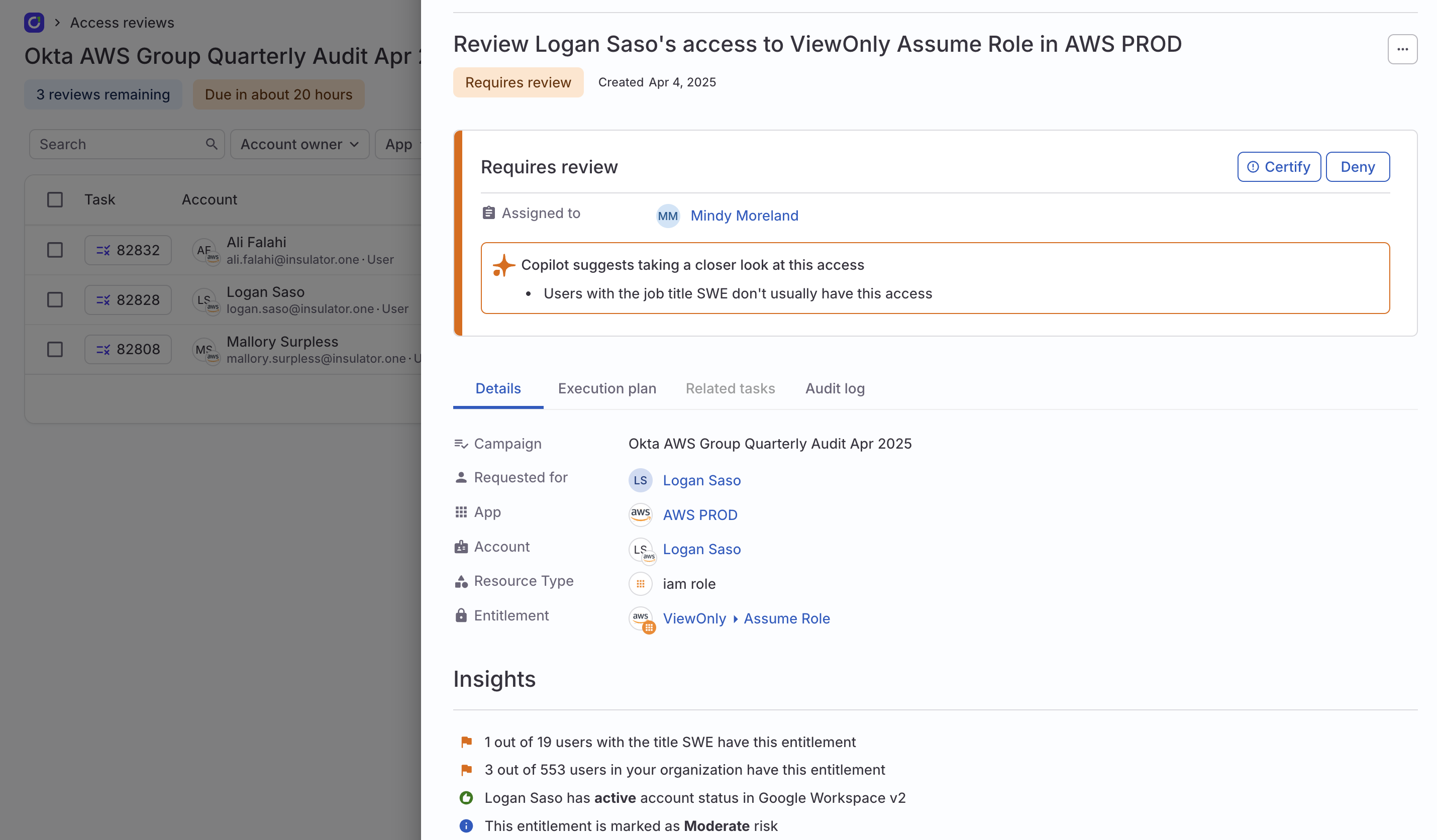
- Click the task’s row to open the details drawer, where you can view more information about the access to help you make your decision. The Insights section gives details such as how many other users in the organization have this access, the risk level of the access, and more.
-
Provide your decision
- Click (Certify) to indicate that this access is needed and appropriate.
- Click (Deny) to indicate that the access isn’t needed or isn’t appropriate, and that you’re recommending its removal.
Step 4: Repeat the process
Repeat these steps to review and take action on each review assigned to you. To take the same action on multiple tasks at once, select your target tasks by clicking each task’s checkbox, then select the action from the menu at the bottom left. You’ll have the chance to add a comment about your action, which is posted on each impacted task. Once you have completed your selections, proceed to Step 5 to finalize your work.Step 5: Finalize and submit your decisions
As you make your selections, your decisions are held in a Pending state. This allows you to review your work as a whole and make any necessary adjustments before finalizing your choices by submitting them.1
Review your pending actions.You can see the number of decisions ready for submission in the summary bar at the top of the screen.Feel free to change any of your choices as you work; your decisions aren’t locked in until you complete the submission step.
2
When you are satisfied with your decisions, click Submit reviews.A summary modal appears, showing the total number of review decisions you’re submitting, and the breakdown of certified and denied reviews. Click Submit to finalize.
3
View the submission log.Once submitted, your decisions are recorded in the campaign’s permanent log. Click the Last submitted on icon at the top of the page to view your submission record.You can continue to submit additional batches of reviews as needed until the campaign is closed.
Copilot’s review recommendations and insights
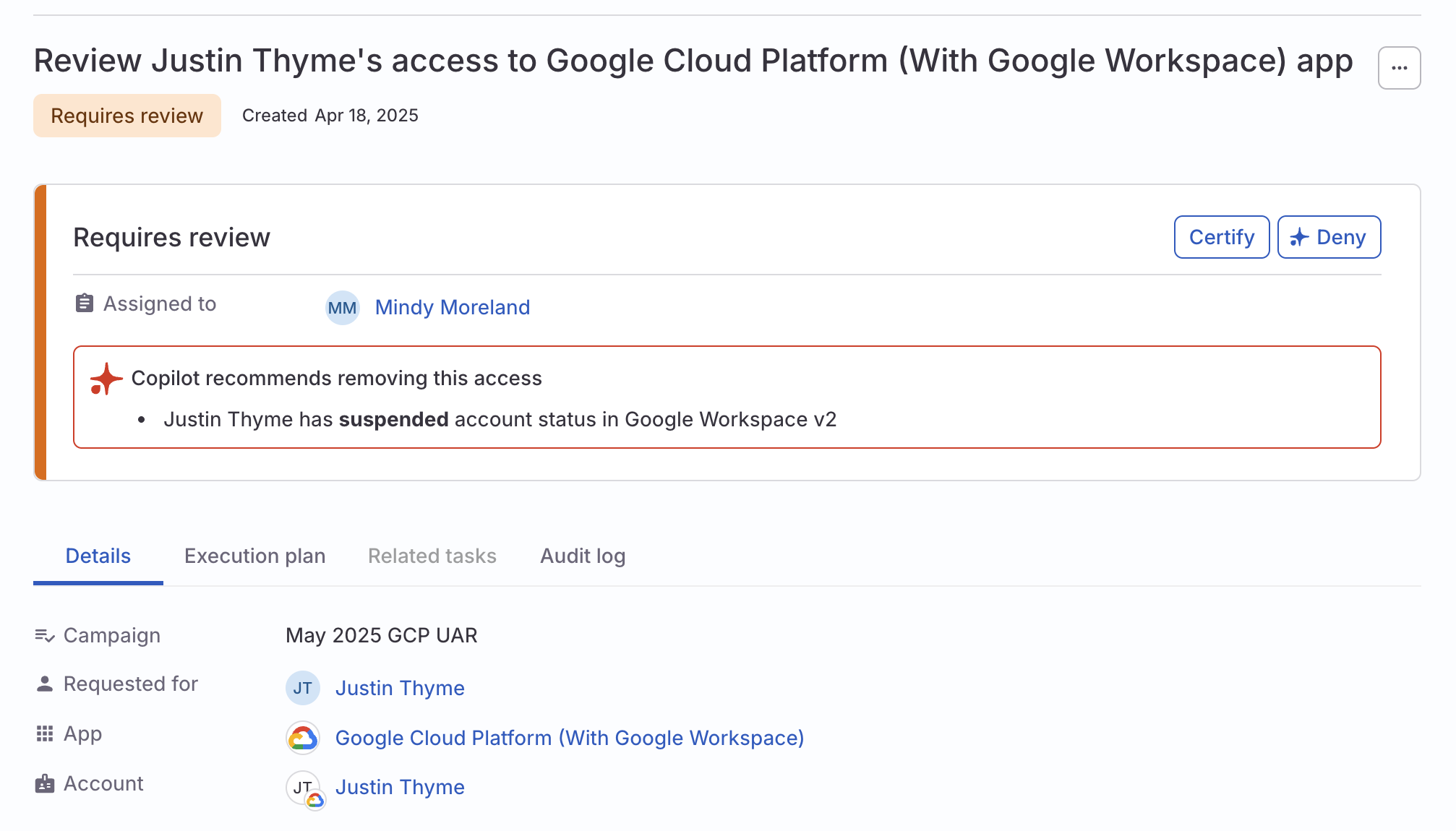
ConductorOne Access Copilot provides insights and recommendations to help you complete your reviews. In the list view and in a task’s details view, you’ll see an Insights flag drawing your attention to important information about the access under review.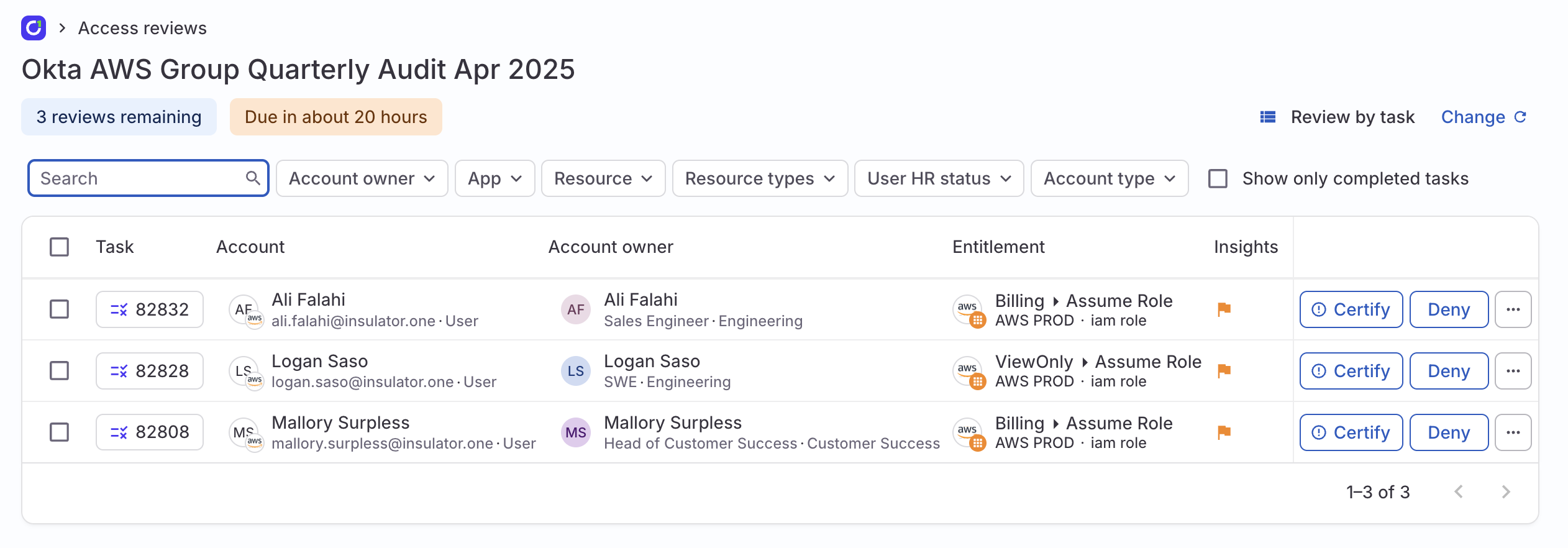
- Take a closer look
- Remove this access
Additional task actions
Depending on your user permissions in ConductorOne and the current status of the review task, you might have additional task actions available to you in the … (more actions) menu. Actions labeled with a symbol are only available to users who have the Super Administrator role.| Task action | Description | Useful when |
|---|---|---|
| Cancel | Stop the task and close it with Canceled status. The task remains in the Task log. | You don’t want or need to complete a task, but want to retain a record of its existence. |
| Delete | Stop the task and delete it from ConductorOne entirely. No record of the task is retained in the Task log. | You don’t want or need to complete a task, and want the record of its existence removed from ConductorOne. |
| (Action) with comment | Take an action (such as certify, approve, mark as provisioned) and add a comment to the task. | You want to provide context or documentation with your decision |
| Comment | Add a comment to the task. | You have a question, request, comment, or context to share. |
| Reassign to | Assign the task to a different user. | Someone else should complete the task |
| Restart | Restore the task to its starting state. All decisions and actions on the task are reset. The task’s history prior to the restart is maintained in the task’s audit log. | You need to start the task over, using the current policy. |
| Hard reset | Restore the task to its starting state and recalculate and apply the policy that governs the task. All decisions and actions on the task are reset. The task’s history prior to the hard reset is maintained in the task’s audit log. | You need to recreate a task so it reflects changes to the governing policy. This is especially helpful after policy updates. |
| Change policy | Restore the task to its starting state and apply the policy you select. All decisions and actions on the task are reset. The task’s history prior to the policy change is maintained in the task’s audit log. This option is not available on request tasks. | You need to recreate a review or revocation task using a different governing policy. |
| Skip step | Skip the current step in the task’s execution plan. The skipped step is assumed to have been completed successfully. | You need to move a task forward without waiting for a user or system to act. |
| Process now | Force a refresh and update of the task’s current status. | A task has gotten stuck or is in an error state. |
| Send reminder | Send an email reminder to the user the task is currently assigned to. | A task has been sitting open and the assigned user might have forgotten about it. |